Users and roles
Everyone who uses PHAEMA has a user account, one role and one or more access areas. The role decides what they can change. The access areas decide which optional modules they can open (see Access areas). Anyone with a role can see the core of PHAEMA: properties, leases, events, cases and documents.
| Administrator | Surveyor | Contributor | Viewer | |
|---|---|---|---|---|
| See the core of PHAEMA, run reports, download | Yes | Yes | Yes | Yes |
| Start cases and work on them | All | Their own, or on properties they manage | No | No |
| Add notes, documents and emails to cases | All | As above | Cases they are added to | No |
| See confidential case notes | Yes | Cases they own | No | No |
| Change properties | All | Those they manage | No | No |
| Change leases, breaks, rents, documents and events | All | On properties they manage | No | No |
| Change parties' details | Yes | Yes | No | No |
| Titles, INSPIRE boundaries, settings | Yes | No | No | No |
| Import from spreadsheets | Yes | Receipts and service charge spending, in the Finance area | No | No |
| Raise rent, credit notes and finance exports | Yes | In the Finance area | No | No |
| Add users and give roles | Yes | No | No | No |
| Change ready-made reports | Yes | No | No | No |
A surveyor manages a property when they are its managing surveyor. They can change the agreements that include that property and the events on those agreements.
Contributors are colleagues outside the estates team, such as the legal officer, who work on particular cases. Add them to a case in its People section.
Someone who can sign in but has no role sees a "no access" page until an administrator gives them one.
Access areas
Not everyone needs every module. Access areas are named groups that open the optional modules. A person can be in more than one, and administrators can always open everything the council has switched on.
| Area | Opens | Typical people |
|---|---|---|
| Estates | Rent, arrears and service charges for their own patch (below) | Surveyors, Head of Estates |
| Finance | Rent ledger, service charges, asset valuation, and maintenance to read. Surveyors in Finance can raise rent, credit notes and finance exports, approve service charge budgets and import receipts | Finance officers |
| Maintenance and compliance | Maintenance and compliance | Building and facilities staff |
| Valuation | Asset valuation | Internal valuers |
| Legal | Nothing beyond the core; contributors work on the cases they are added to | The legal team |
Tick a person's areas on their user record, under Access areas. Administrators can change what each area opens under Manage data, Access areas. When access areas arrived, everyone was put in all of them, so nothing disappeared; narrow each person's access from there.
If someone opens a module their areas do not include, even by typing its address, PHAEMA refuses and tells them to ask an administrator. Menus, dashboards, reports and the change log only show what they can open.
Their own patch. People in the Estates area see rent, arrears and service charges for:
- the properties they manage, and every part of them;
- the properties managed by everyone below them in the supervision chain, so a Head of Estates sees their whole team's, and the director above them sees all of that too;
- the patch of anyone they are covering for (below).
A lease over several properties appears for every surveyor whose patch includes one of them. Properties with no managing surveyor appear only for Finance and administrators. Demand runs and finance exports need the whole rent ledger.
Changes to a person's areas are recorded in the change log.
Cover for absence
While someone is away, another person can cover their patch. Administrators can arrange cover for anyone; supervisors for anyone in their supervision chain. Use Arrange cover for absence on My work, or the link on Hand over work.
Choose who is away, who is covering, and the first and last days. The person covering sees the absent person's patch as their own until the end of the last day, then it stops automatically. End now stops cover early, and Cancel removes cover that has not started. Cover is recorded in the change log.
Cover adds what someone can see; it does not move work. To move properties, cases and tasks, use Hand over work.
Adding a user
Administrators: select Manage data, then Users, then Add user. Set a username and a starting password, then on the next page add their name and email address and choose one group: Administrators, Surveyors, Contributors or Viewers. Their email address is used for reminders.
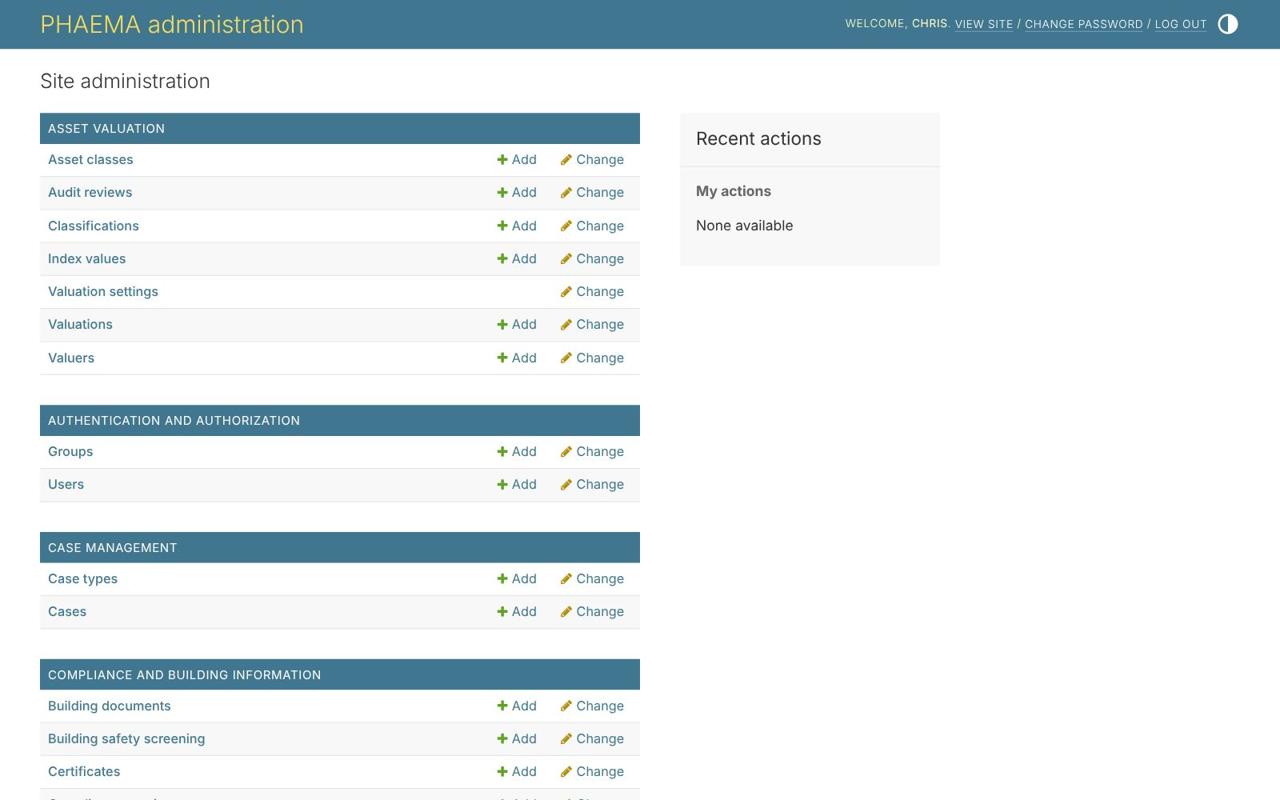 Manage data, where administrators add users and change settings.
Supervisors
Each surveyor needs a supervisor and approver, who approves their recommendations on cases. On the user record, under Staff details, choose the supervisor and add a job title. The supervisor can be a surveyor or an administrator, but nobody can approve their own work. The users list shows each person's supervisor, and the dashboard tells administrators about any surveyor without one.
To stop someone using PHAEMA, untick Active on their user record rather than deleting it, so their name stays on the records they changed. Hand their open work to colleagues first, as below.
Handing over work
When someone leaves, changes job or a new starter takes over part of a patch, administrators can move their work in one step with Hand over work in the menu (also linked from each user record).
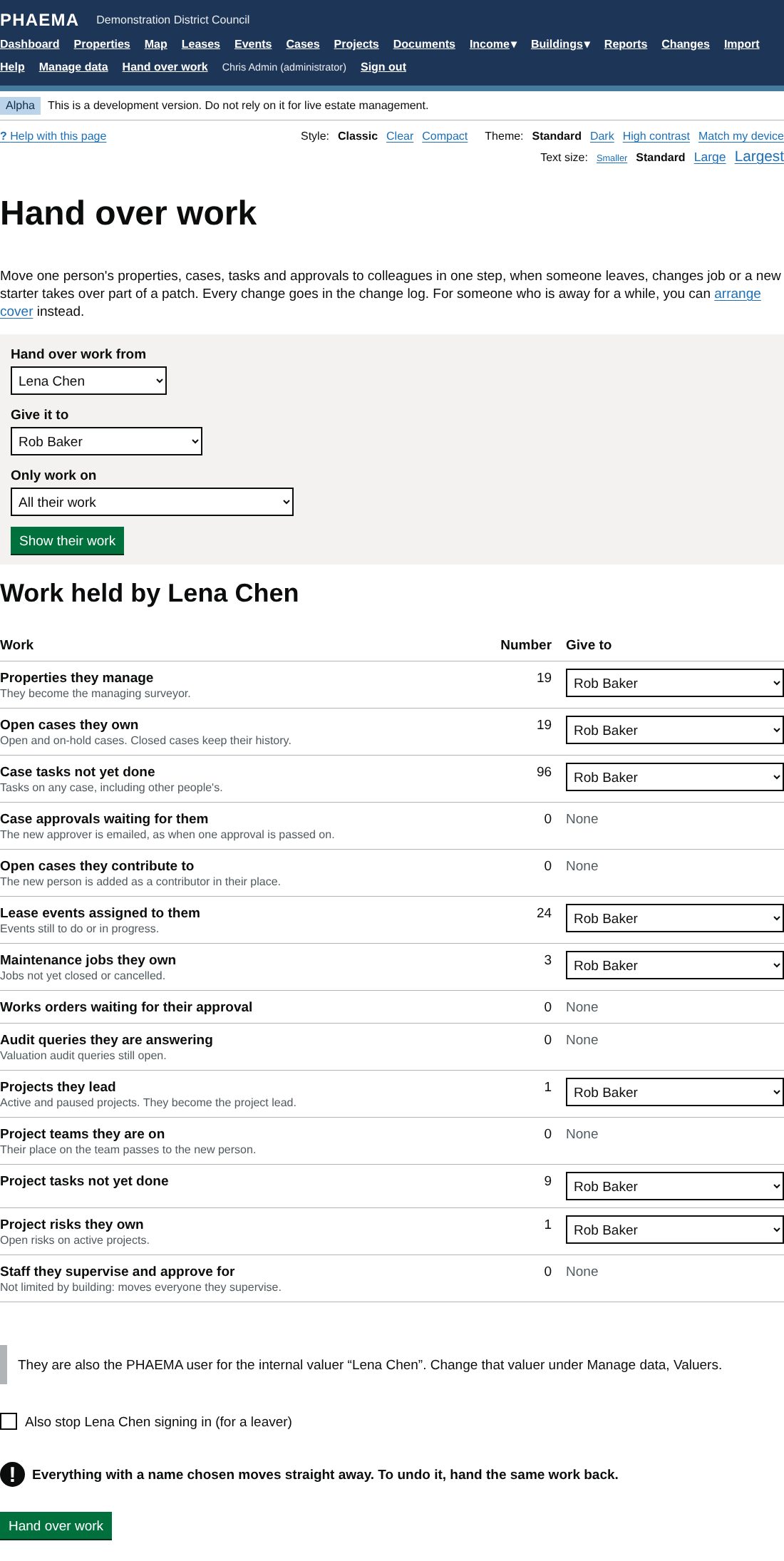 Handing over Lena Chen's work to Rob Baker in the demonstration data.
- Choose who the work comes from, who it goes to, and optionally Only work on one estate, site or building to hand over just that part of their patch.
- Select Show their work. PHAEMA counts what they hold: properties they manage, open cases they own, case tasks not yet done, case approvals waiting for them, open cases they contribute to, lease events assigned to them, maintenance jobs they own, works orders waiting for their approval, valuation audit queries, projects they lead, their places on project teams, project tasks and risks they own, and the staff they supervise.
- For each kind of work, keep the person you chose, pick someone else, or choose Leave with to keep it where it is. Properties, cases and approvals can only go to surveyors and administrators, and maintenance jobs and valuation queries only to people whose access areas open those modules; contributors can also take over case contributions and project team places, tasks and risks.
- For a leaver, tick Also stop them signing in. Then select Hand over work.
Closed cases, stopped or closed projects, completed tasks and past approvals keep the original names, so the history stays true. Every record moved is listed in the change log under your name. To undo a hand-over, hand the same work back. If the person is also an internal valuer, change the valuer record under Manage data, Valuers.