Importing and exporting
Importing
Administrators can add or update many records at once from an Excel or CSV file. Select Import in the menu.
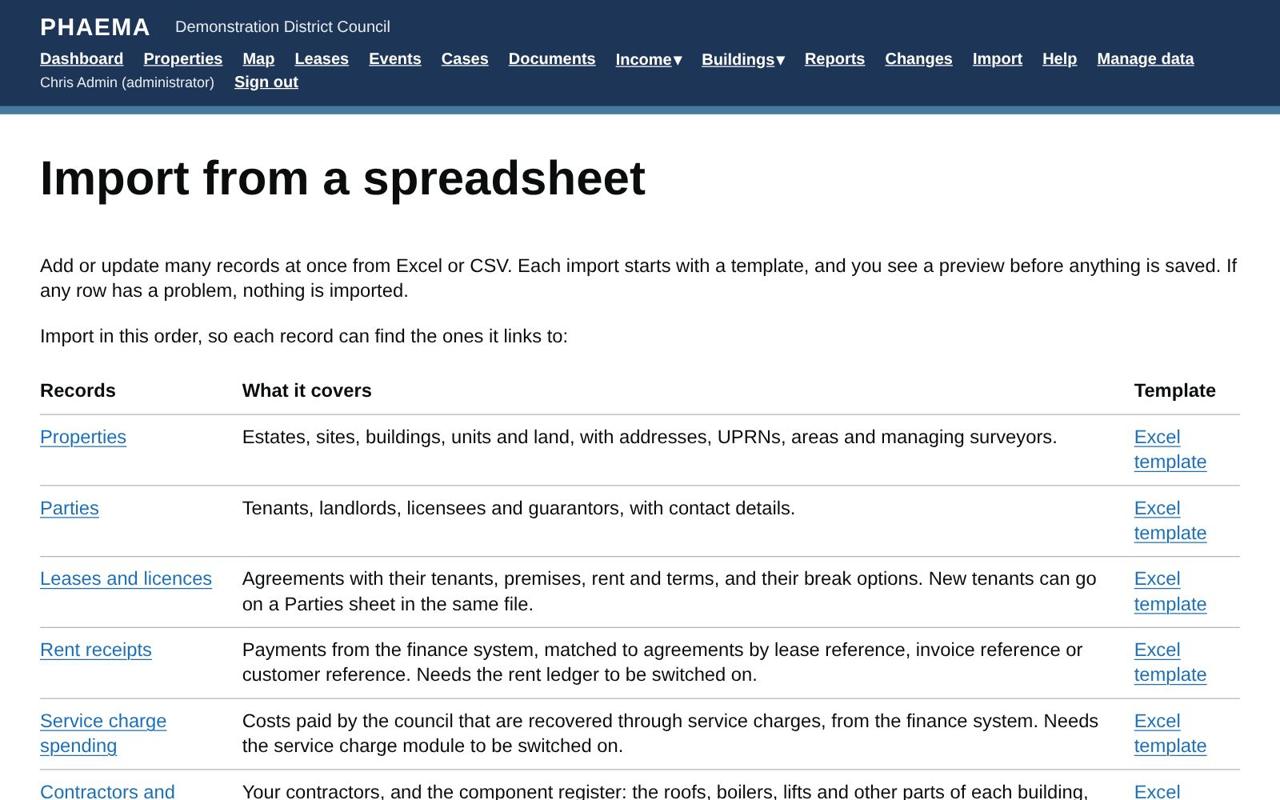 Import in the order listed.
Import in this order, so each record can find the records it links to:
- Properties
- Parties
- Leases and licences, with their break options
- Land Registry boundaries, if you use them
Rent receipts from the finance system are imported the same way when the rent ledger is on. See receipts. So is service charge spending, project spending (actual figures from the ledger, which finance officers can import), and, with maintenance on, contractors and components.
How every import works
- Download the Excel template. It has a sheet for each kind of record, drop-down lists for fixed choices, an example row, and a Guidance sheet explaining every column. Columns marked * are required.
- Delete the example rows and fill in one row per record.
- Upload the file. PHAEMA checks every row and shows a preview: what will be added, what will be updated (and which columns change), and what is unchanged.
- If any row has a problem, nothing is imported. The preview lists each problem with its sheet and row number. Correct the spreadsheet and upload it again.
- When the preview is clean, select Import these records.
Some rules apply to every import:
- Existing records are matched and updated; new ones are added.
- Empty cells leave existing values unchanged. You can update one column by uploading just the reference column and that column.
- Dates can be typed as dd/mm/yyyy (for example 25/03/2026) or entered as Excel dates.
- Fixed choices accept either the wording in the drop-down or the short code.
- A CSV file holds one sheet only. Use Excel to import several sheets at once.
- Every import is recorded in the change log.
Properties
Rows are matched by Reference. Use Part of to give the reference of the estate, site or building a property belongs to; put parents above their parts, or make sure they already exist. Managing surveyors are given by their PHAEMA username or email address.
Parties
Rows are matched by finance customer reference if it is filled in, otherwise by name (ignoring capitals). If two parties have the same name, add the finance customer reference to say which one. A type is needed for new parties.
Leases and licences
The leases template has three sheets, imported in this order:
| Sheet | Matched by | Notes |
|---|---|---|
| Parties | Finance customer reference or name | Optional. Use it for new tenants, so you can import them and their leases in one file. |
| Leases | Reference | Tenant or landlord is a party in PHAEMA or on the Parties sheet. Premises lists property references separated by semicolons. |
| Breaks | Lease reference and break date | Optional. The lease can be in PHAEMA or on the Leases sheet. |
For a new agreement, the annual rent becomes the first entry in its rent schedule, and events are created from its review date, breaks and term end.
To change the rent of an existing agreement, use its rent schedule, not an import.
Contractors and components
With maintenance switched on, the Contractors and components template has two sheets. Either can be left out.
| Sheet | Matched by | Notes |
|---|---|---|
| Contractors | Name | Contact details, approved list, insurer, cover, insurance expiry and accreditations. |
| Components | Property reference and component name | Category, Uniclass 2015 and NRM3 codes, quantity, year installed, expected life, condition (A to D) and replacement cost. |
Use it to load a condition survey or an existing asset register in one go, then re-import corrected files.
Valuer's returned figures
With asset valuation switched on, this template takes the values back from the valuer for the assets instructed in the year's programme: asset reference, valuation date, value, land and buildings, remaining life, method, inspection, report date, valuer, and any material uncertainty. Each row updates the instructed valuation; accepted valuations cannot be changed this way.
Exporting
Every list (properties, leases, parties, events and the change log) has Download Excel and Download CSV links. The download contains everything that matches your current filters, in your current order, not just the page you can see.
- Excel files have formatted money, area and date columns, a frozen heading row and filter buttons.
- CSV files open in Excel and most other software, and suit loading into finance or GIS systems.
For other columns or combinations of filters, use reports.
Downloaded files are outside PHAEMA's access controls. Store and share them in line with your council's information governance rules.