Getting started
Signing in
Use the username and password your PHAEMA administrator gave you. If you can sign in but see a page saying you do not have access, you have not been given a role yet. Ask an administrator.
The menu
The menu at the top of every page takes you to:
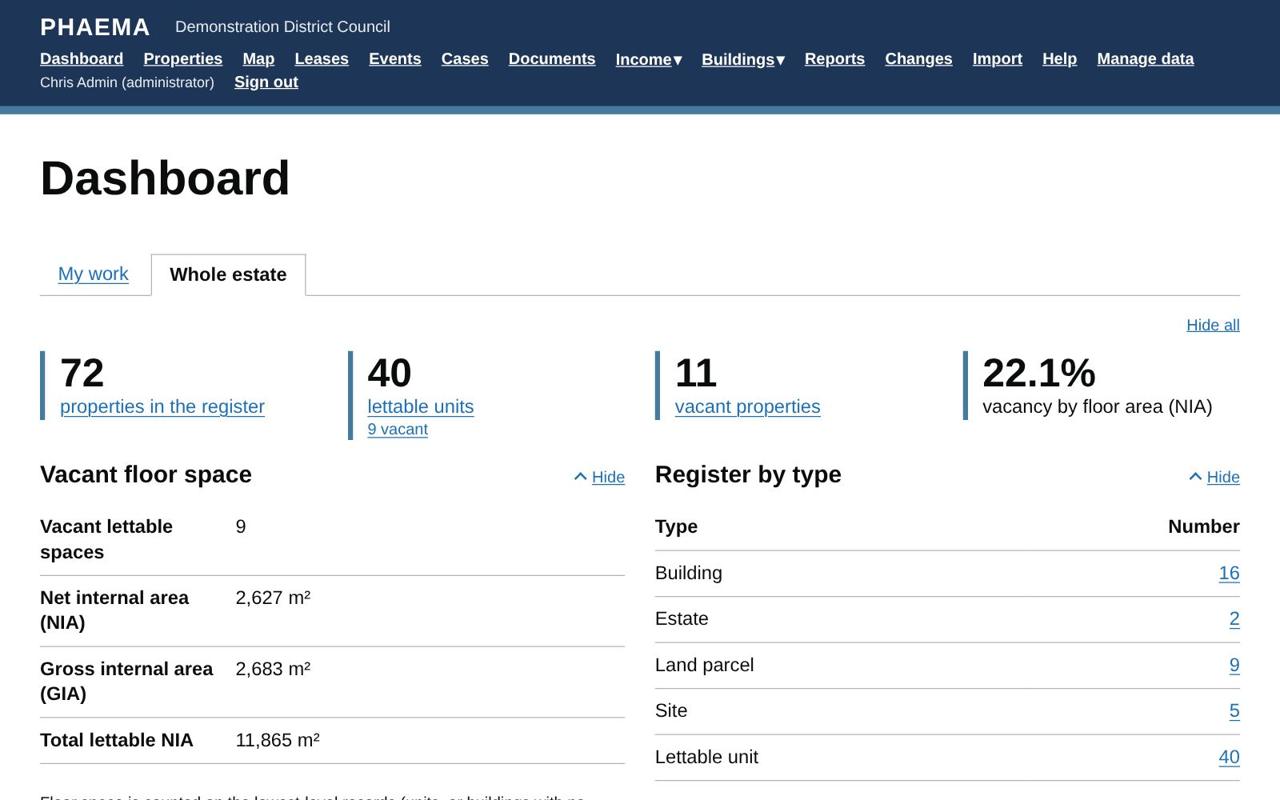 The menu runs across the top of every page.
| Menu item | What it is for |
|---|---|
| Dashboard | A summary of the estate: what needs doing, rent roll, vacancies. See the dashboard. |
| Properties | The property register. |
| Map | Every property with a location, on a map. |
| Leases | Leases and licences, with links to parties. |
| Events | Key dates such as rent reviews, breaks and expiries. |
| Cases | Cases: consents, requests and other work from start to outcome. |
| Projects | Projects: developments, acquisitions, disposals and programmes, taken through gateways. |
| Documents | The document library: letters and notices filled in from PHAEMA and downloaded to Word. |
| Income | The rent ledger (rents, arrears, receipts) and service charges. Shown when the council uses them and your access areas include them. |
| Buildings | Maintenance, compliance and asset valuation. Shown when the council uses them and your access areas include them. |
| Reports | Ready-made and your own reports, to view or download. |
| Changes | The change log: who changed what, and when. |
| Import | Administrators, and finance officers for receipts, service charge spending and project spending: import from spreadsheets. |
| Manage data | Administrators and surveyors: add and edit records. |
| Hand over work | Administrators: move a leaver's or mover's properties, cases and tasks to colleagues (how). |
| Help | This manual. |
Finding records
Every list (properties, leases, parties, events) has filters on the left and a search box. Choose your filters and select Apply. Select a column heading to sort by it; select it again to reverse the order.
Each list has Download Excel and Download CSV links. They download exactly what you are looking at, with your filters and sort order. See import and export.
Adding and changing records
Select Manage data (or an Edit link on a record's page) to add or change records. Whether you can change a record depends on your role. Every change is recorded in the change log.
Making PHAEMA easier to read
Under the menu there are three settings that PHAEMA remembers on your computer:
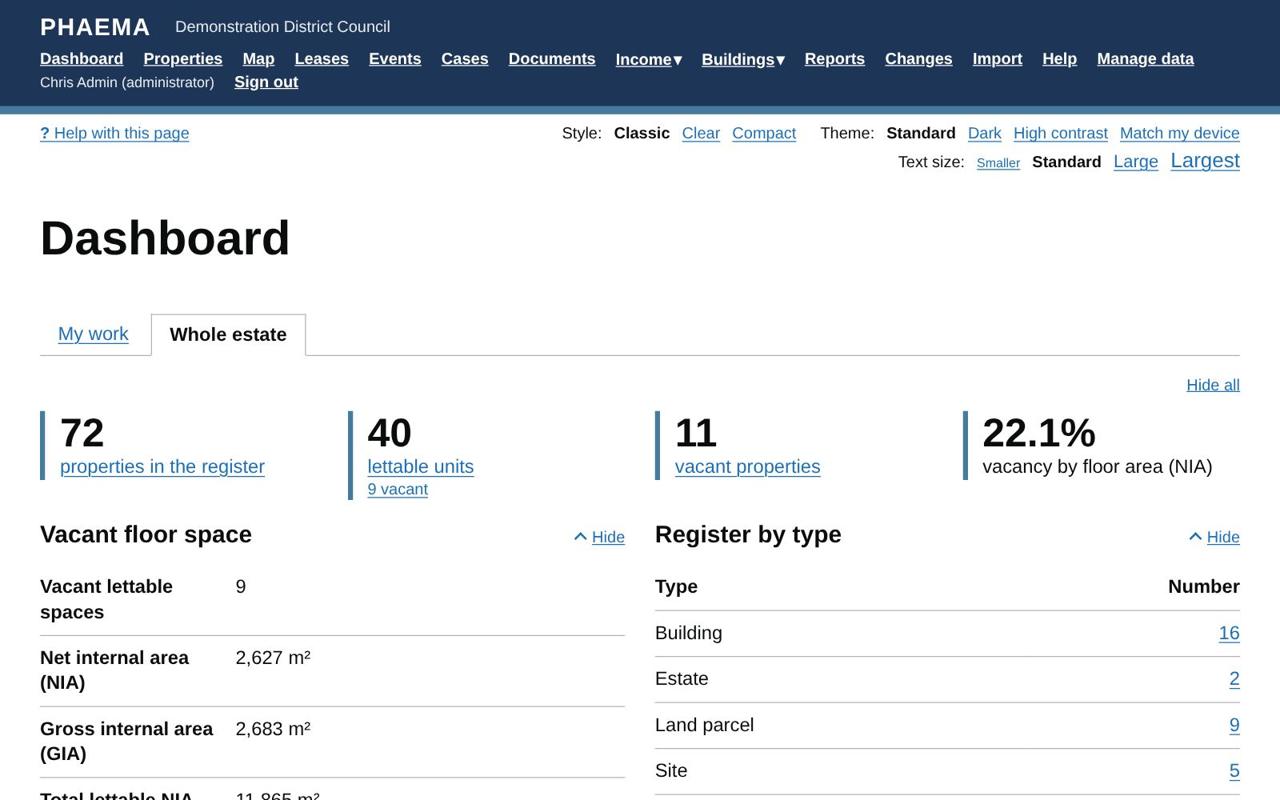 Style, theme and text size are under the menu.
- Theme: Standard, Dark, High contrast (yellow on black), or Match my device, which follows your computer's light or dark setting.
- Style: Classic (GOV.UK), Clear (boxed sections and an easy-to-read typeface) or Compact (more on screen).
- Text size: make all text smaller or larger.